Start with your photo
Upload a clear photo with a recognizable subject. Separate the subject from a busy background when possible; this generator needs an image rather than text alone.
AI line drawing tool
One photo, several ways to draw it. Choose delicate line art, bold contours, a stencil or a coloring style, then tune the detail and line weight. Start with free credits and check the cost before generating.
Upload a clear photo with a recognizable subject. Separate the subject from a busy background when possible; this generator needs an image rather than text alone.
Select a style, then adjust detail and line weight. For a quieter background, add a short instruction in the optional details field. Review the displayed credit cost and create your image.
Follow progress in My tasks. Open the finished image, inspect important details and download it. To try another look, return with your photo and choose different settings.
Your photo supplies the subject and composition. AI redraws the main boundaries in the selected style, removing color, shading and texture. It may simplify or reinterpret edges rather than tracing every pixel exactly.
Fine line art keeps small structural details with thin strokes. Bold outline favors larger shapes and thicker borders. Clean sketch adds natural contour strokes; stencil connects dark shapes; coloring leaves open white areas. Each preset sets a starting detail level and line weight you can change.
A simple source background helps keep contours readable. Ask for a simpler background in the optional details field, or crop your photo before uploading. Background simplification is an AI instruction, not a separate removal or transparency switch.
Choose a scene and a style. The color originals were created with AI; every line drawing shown was generated through OutlineDraw. Results vary with your image and settings.
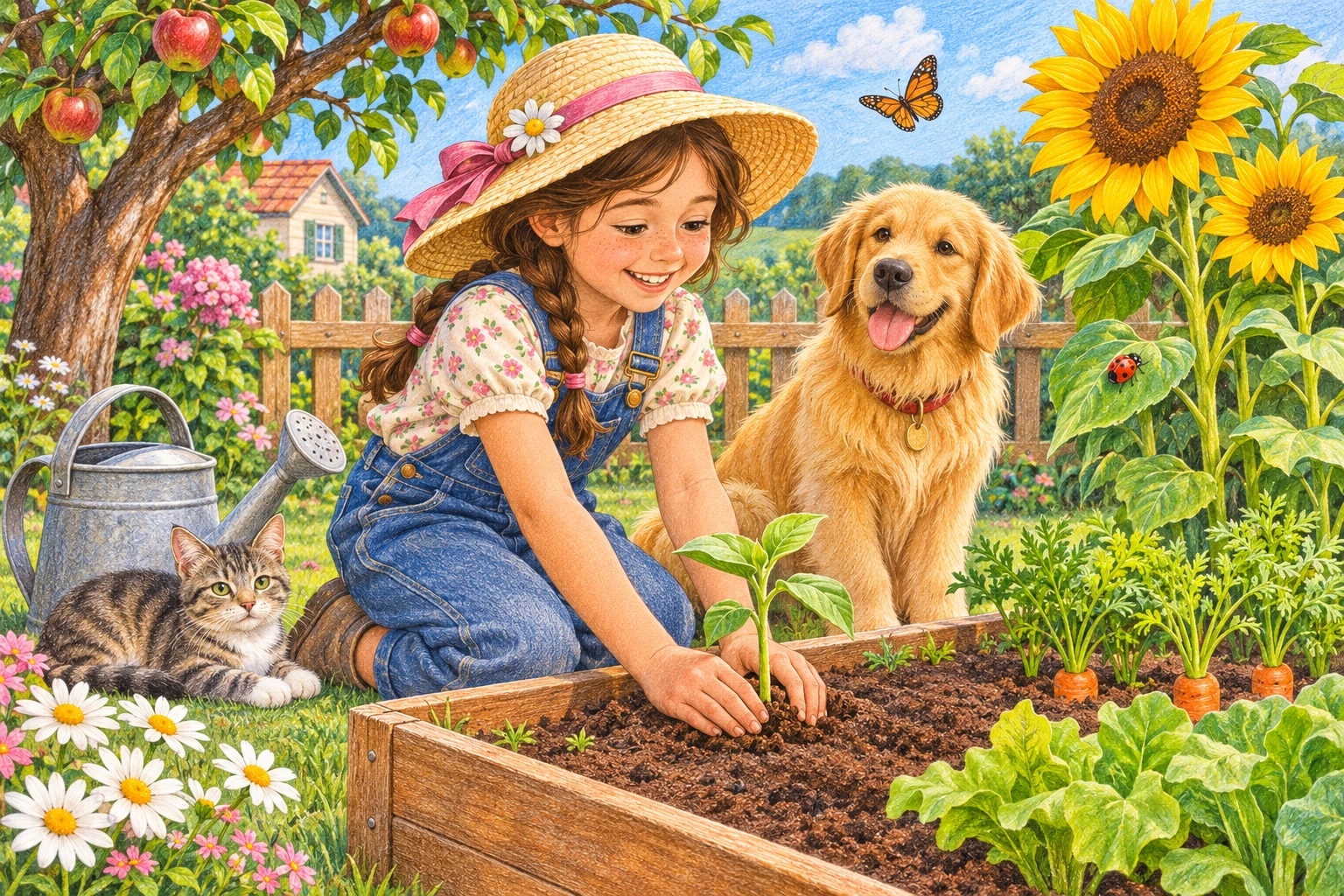
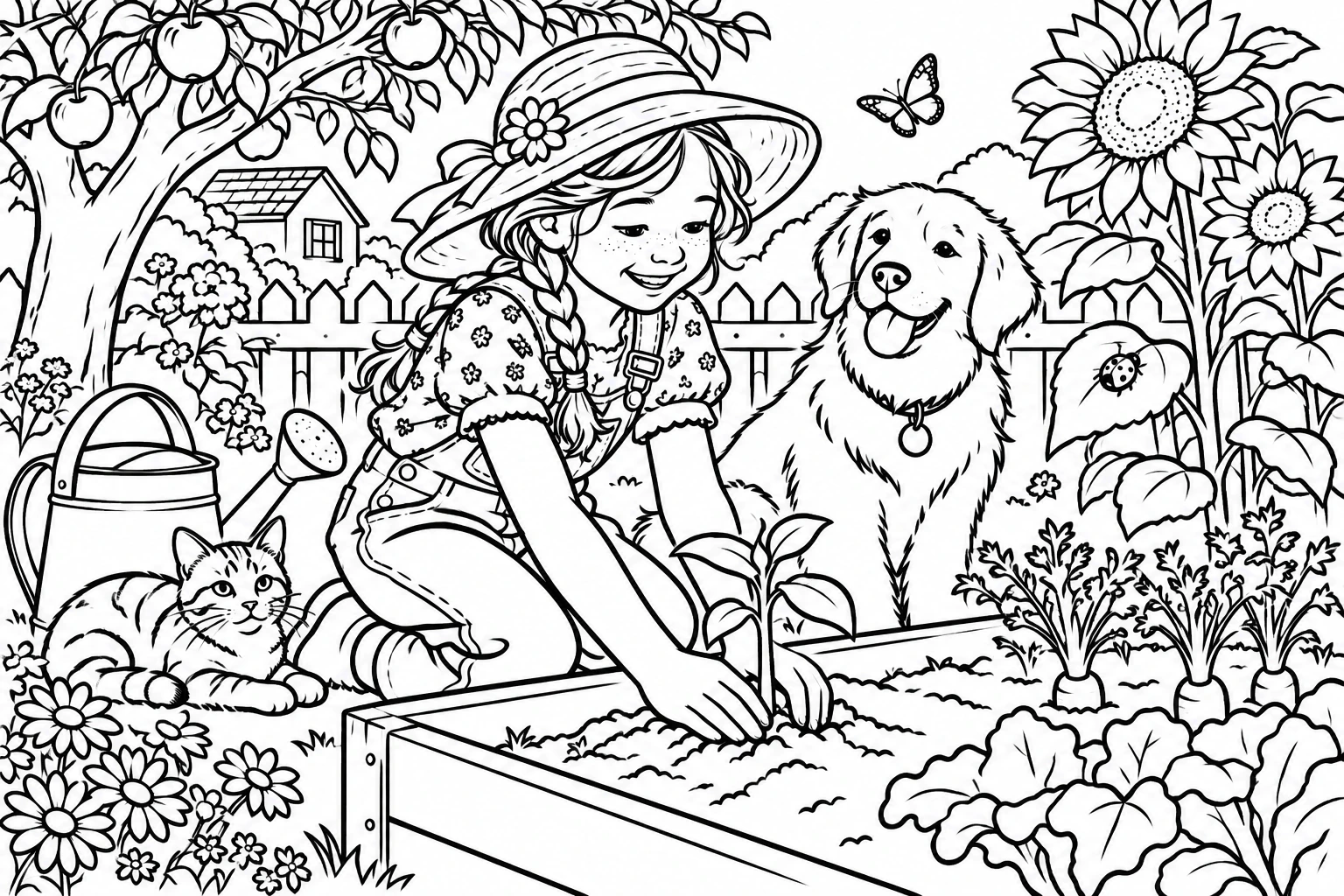
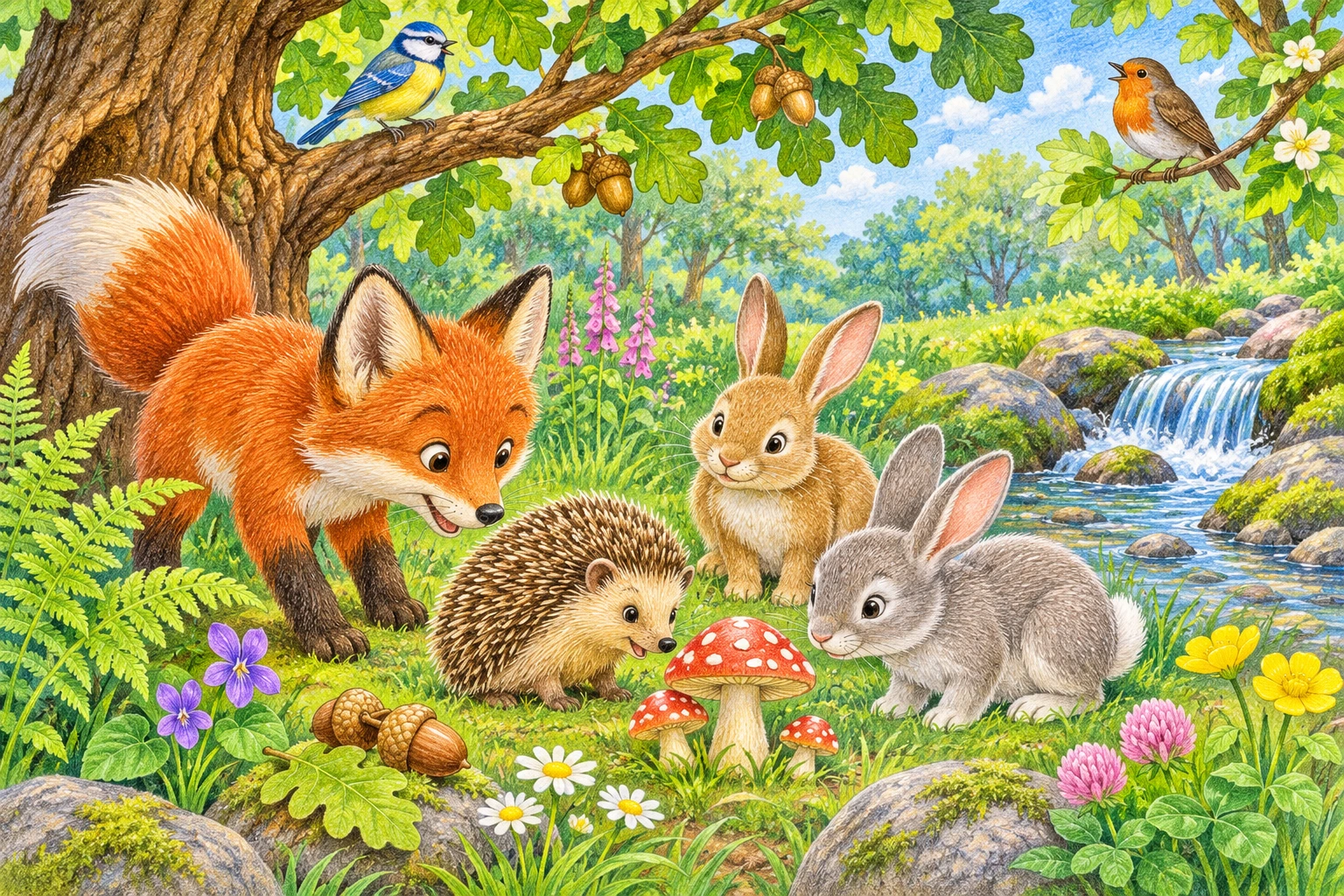
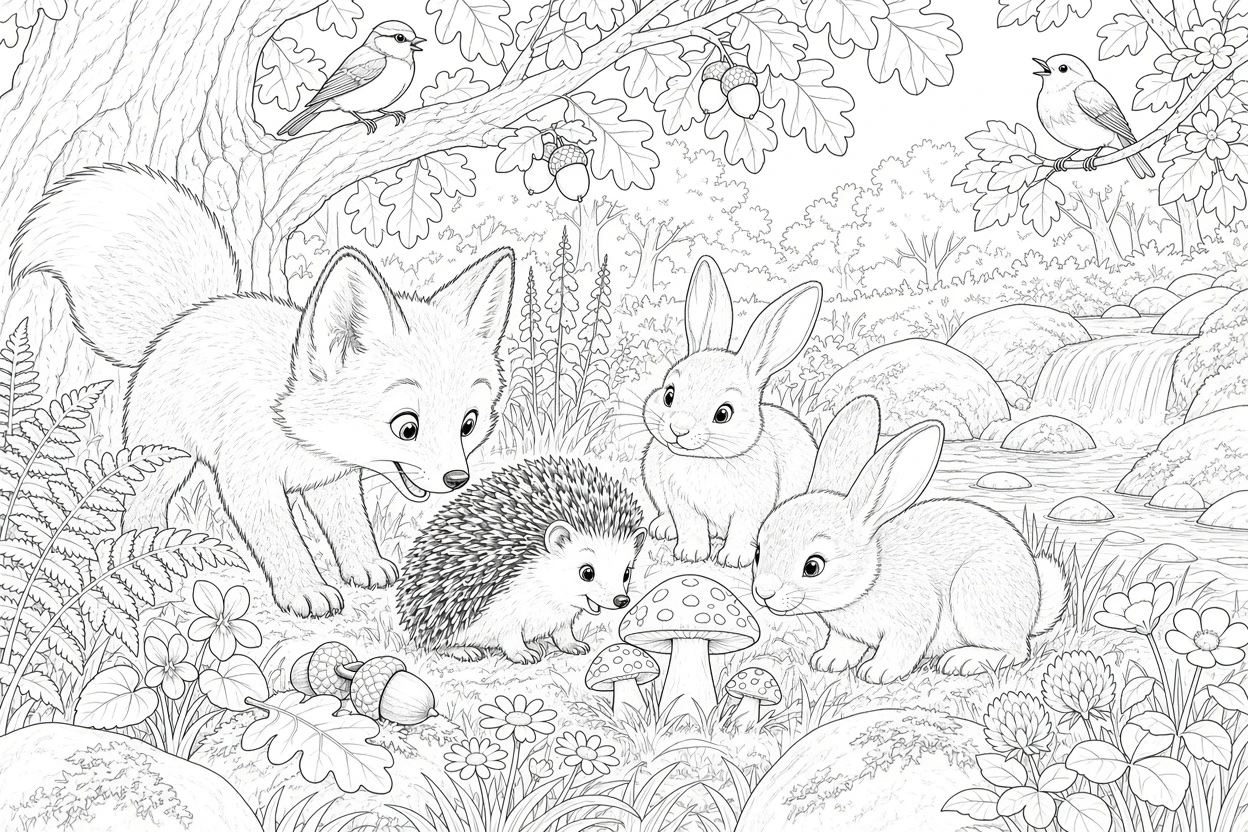
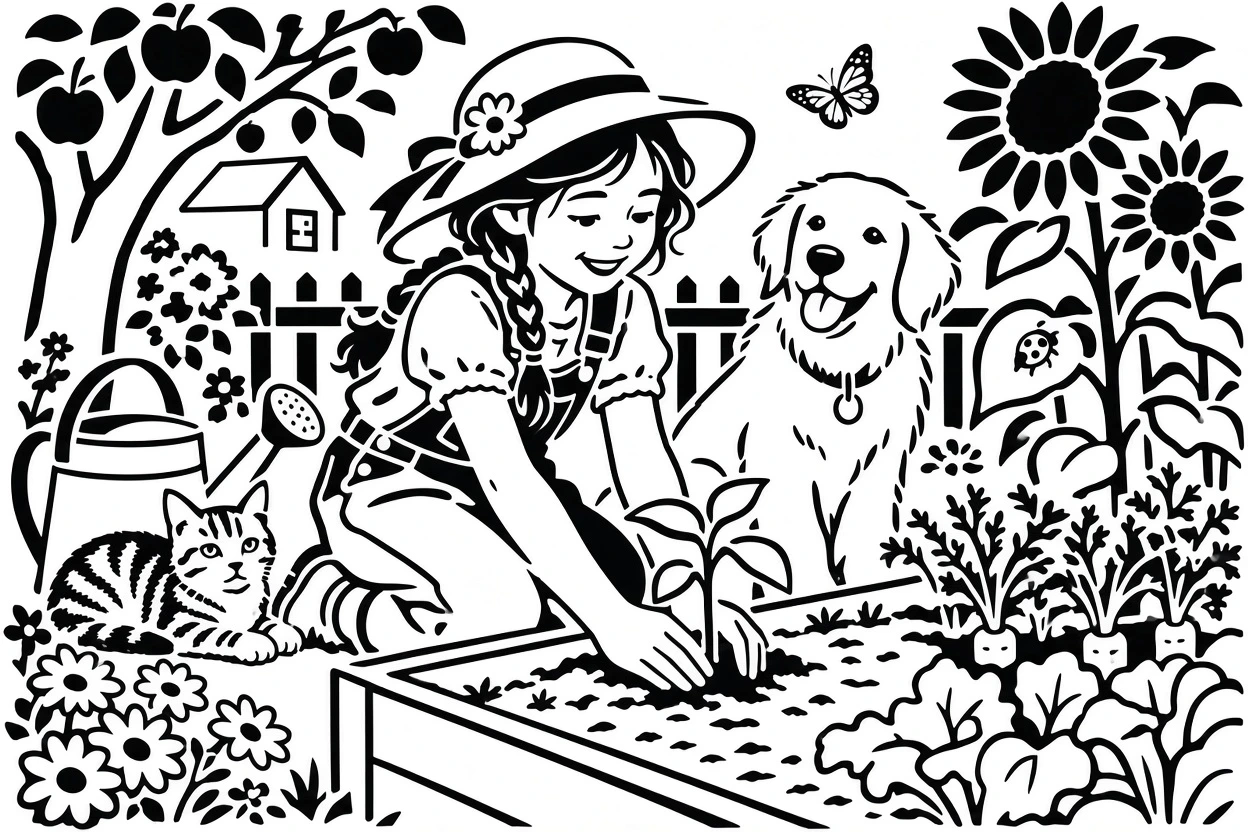
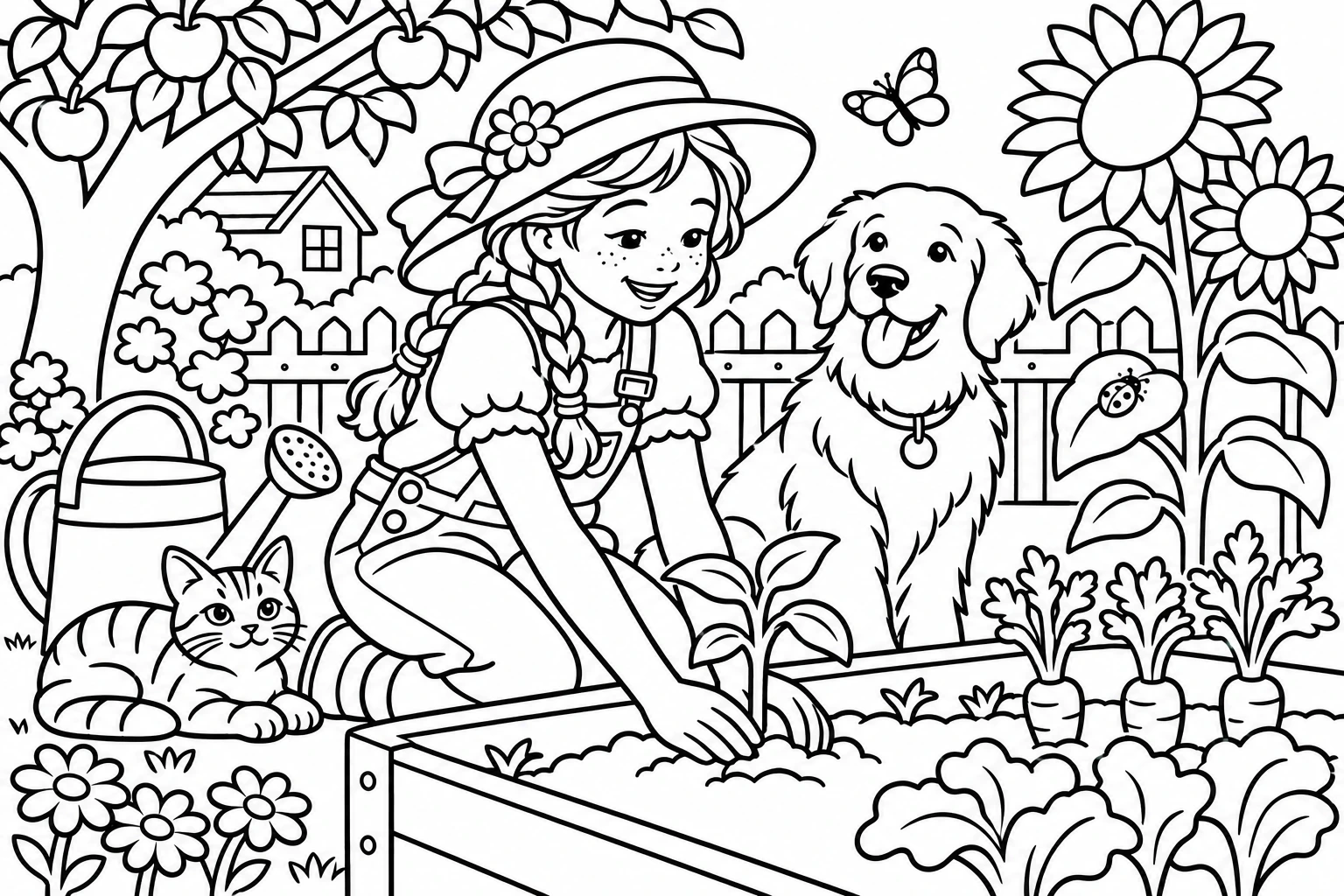
Use Clean sketch with balanced detail as a starting point for tracing or drawing over. Inspect proportions before adding your own ink or color.
Try Fine line art for delicate contours or Bold outline for a stronger silhouette. Bring the image to an artist to refine; it is not a finished tattoo transfer.
Try Stencil design with minimal detail and thick lines for a clear reference. The export is a raster image: prepare and validate paths, scale and machine settings in your engraving software.
Choose Coloring page with simple detail and open areas. Review closed shapes and stray marks, then print a test page or use the dedicated coloring tool below.
Start with 2 trial credits. Sign in to receive 4 more. Unused trial credits stay available; each gift is granted once. Trial and paid credits use the same per-image prices. Each generation uses the credits shown before you submit. Further use needs sufficient credits; generation is not unlimited free.
This tool starts from an uploaded photo or image. Style, detail and line weight guide how AI redraws it; a text-only image generator is not offered on this page.
Use a sharp, well-lit image, select minimal detail and try a thicker line weight. Crop distracting elements before upload or ask for a simpler background in the optional details field.
You can download the finished raster image from My tasks. There is no SVG path export or transparency control here. Use a separate editor to trace vectors or remove the white background if your project needs it.
No. AI may alter faces, lettering, hands or tiny objects. Compare the result with your source and review it before using it in an illustration, tattoo concept or engraving project.
AI results vary based on input quality. Review the output before use.